
Managing Tasks
Tasks keep the work moving and visible. Every task can be tied to a claim or a cash job, assigned to a teammate, and tracked in a list or on a Kanban board.
- Step 11
Open Tasks
Click Tasks in the left rail. Toggle between list view and board view in the top right. The board has four columns: To Do, In Progress, Waiting, and Done.
app.claimory.io/tasks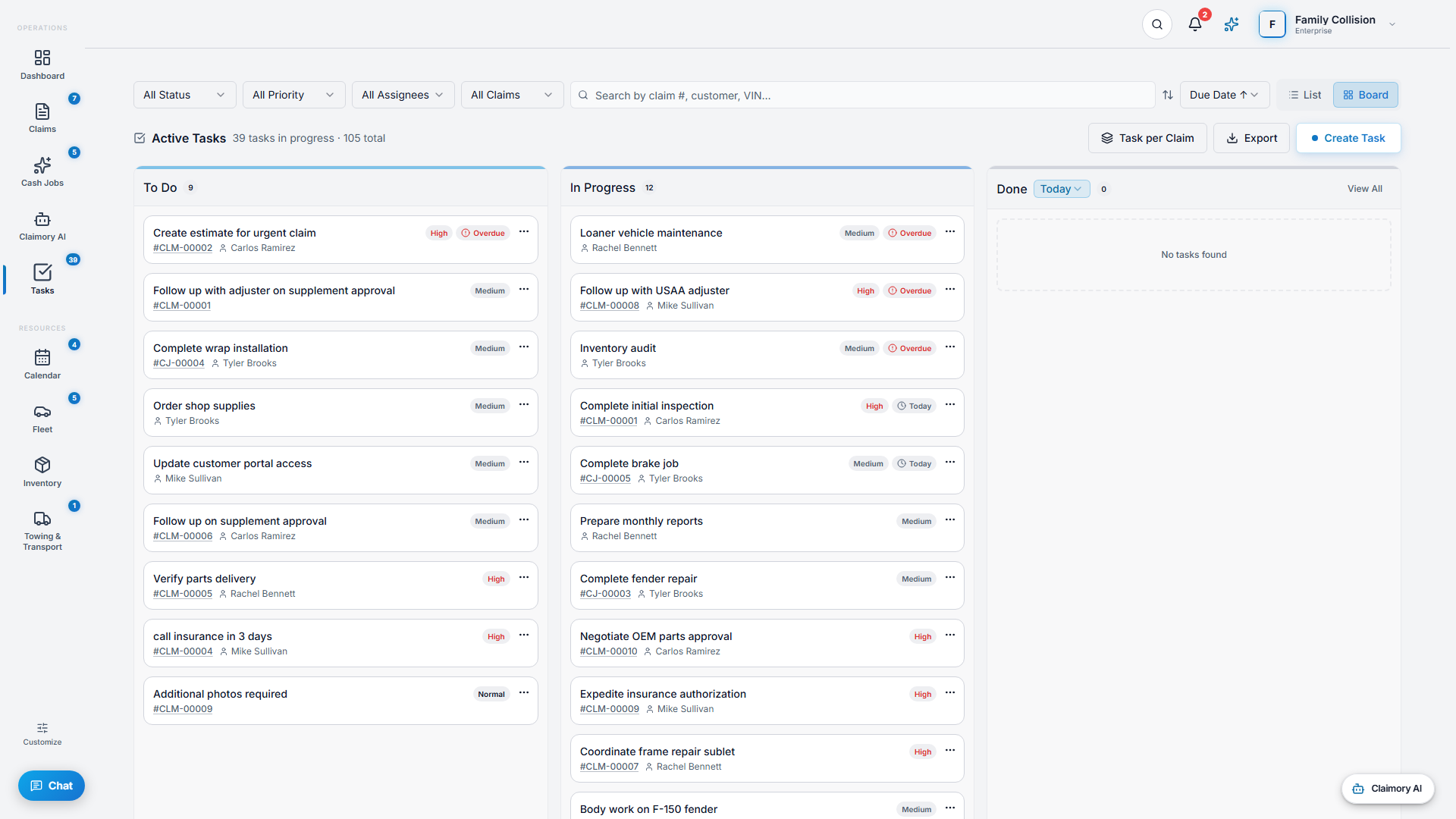
- Step 22
Create a task
Press Create, then set the title, due date, priority (Low, Medium, High), the claim or job it belongs to, and the assignee. The assignee is notified.
app.claimory.io/tasks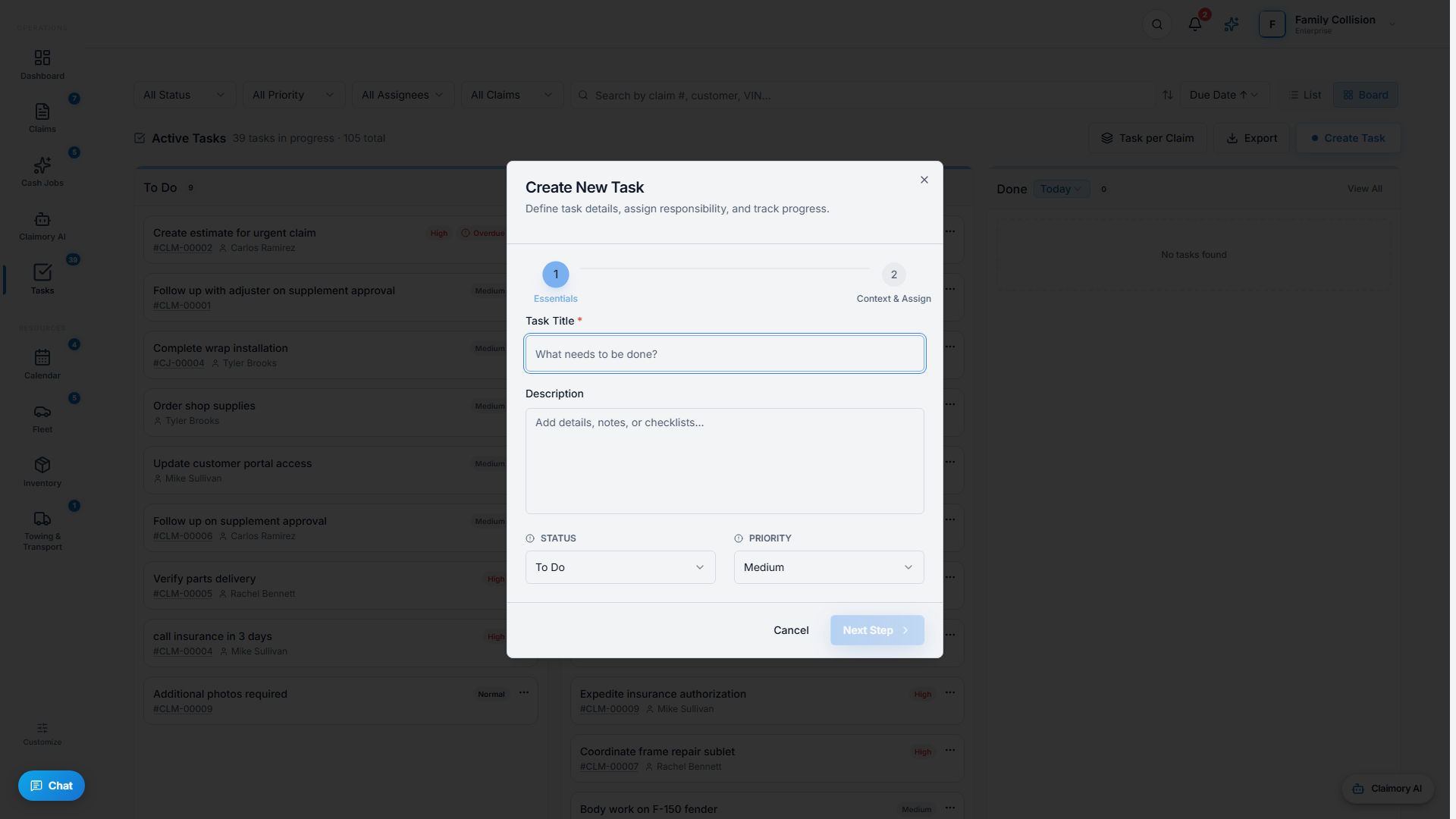
- Step 33
Bulk-create one task per claim
Use Task per claim to create the same task across many claims at once. This is the fast way to run a sweep, for example a follow-up call on every claim waiting on insurance.
- Step 44
Filter and sort
Use the quick chips (Overdue, Due Today, In Progress) and filters for status, priority, assignee, and claim. Sort by due date, priority, or newest. Export to CSV when you need a list outside the app.
- Step 55
Drag to update status
On the board, drag a task between columns to change its status. The update is instant, so the whole team sees the current state.


Common questions
Related tutorials
Ready to run your shop on Claimory?
Start a free 14-day trial. No credit card. The full Professional feature set, and an office manager onboarded in about 30 minutes.
No credit card. Works with CCC ONE and Mitchell.