
Inventory, Parts, and Vendors
Inventory keeps parts and materials under control: what you have, what is on order, and who you buy from. Available on Professional and up.
- Step 11
Open Inventory
Click Inventory in the left rail. The dashboard shows parts, materials, vendors, open orders, and total value. Parts and vendors both live here.
app.claimory.io/inventory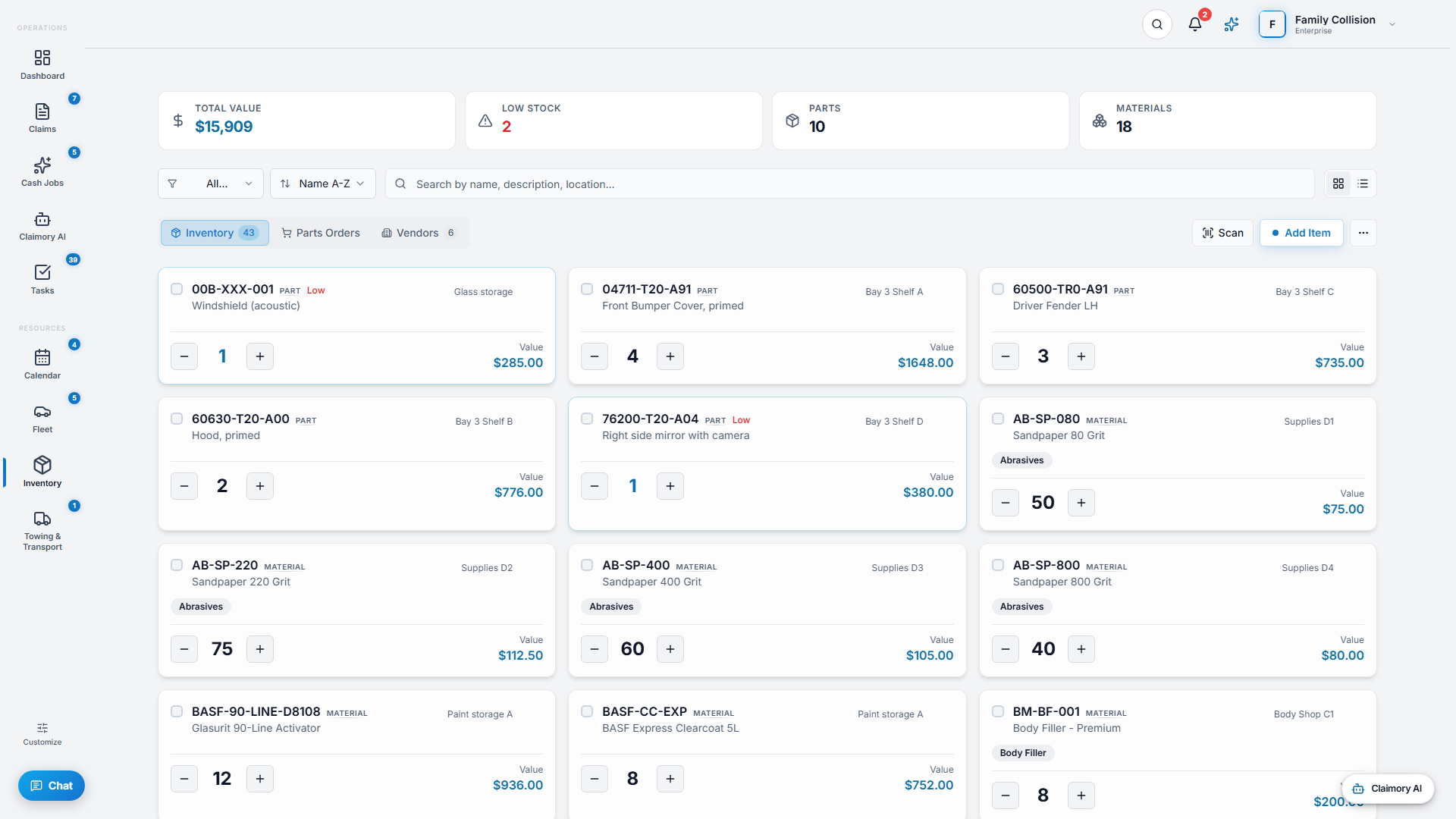
- Step 22
Add and adjust stock
Use Add Inventory to create an item, Edit to change it, and Adjust Stock to correct counts. A barcode scanner speeds up receiving and lookups.
app.claimory.io/inventory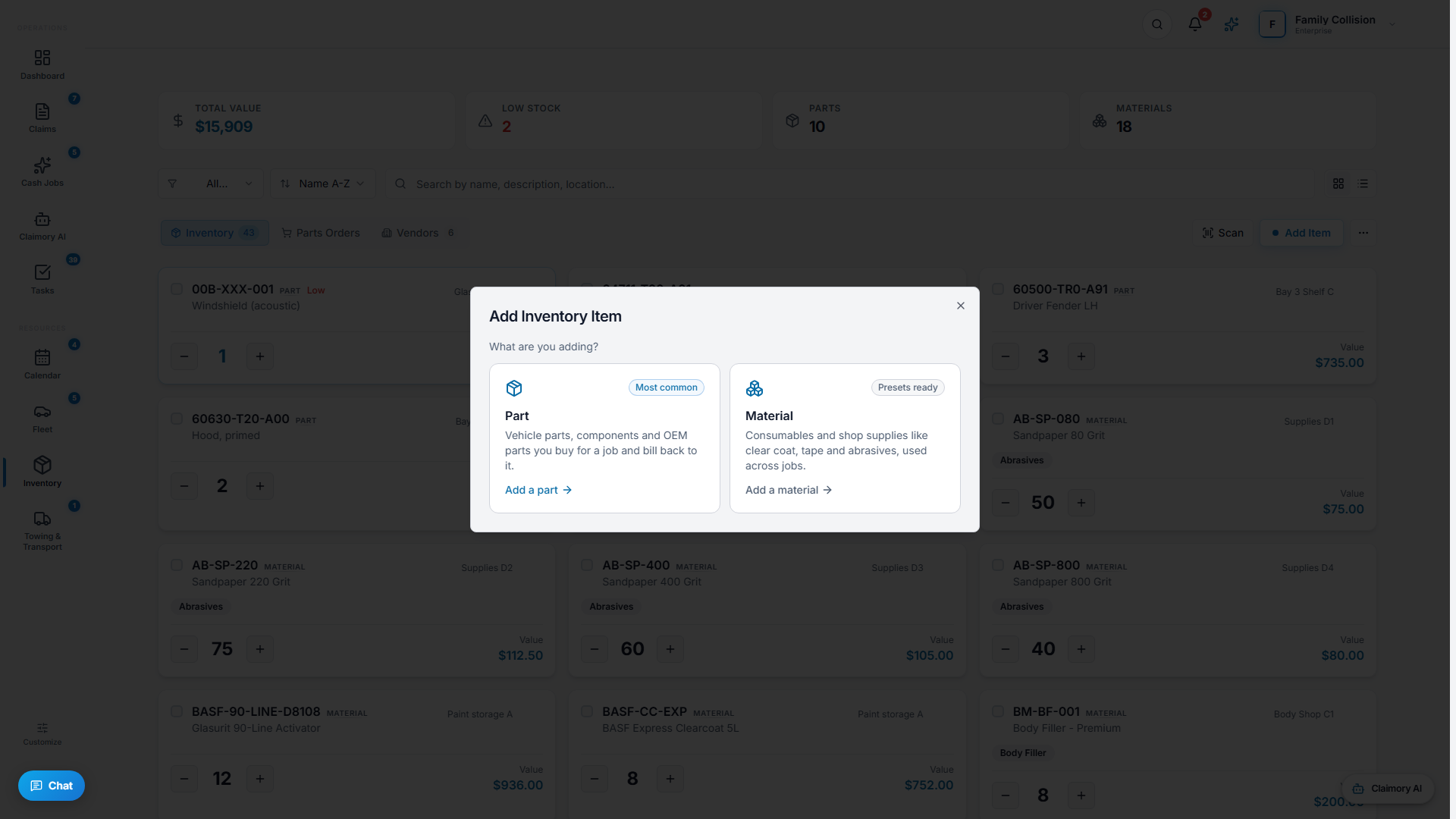
- Step 33
Create purchase orders and receive
Create a purchase order to a vendor, then use Receiving to log parts as they arrive. Stock movements are tracked in the history view, and low-stock alerts tell you when to reorder.
- Step 44
Manage vendors
On the Vendors tab, add and edit the suppliers you order from, so purchase orders and parts trace back to a real vendor record.
app.claimory.io/inventory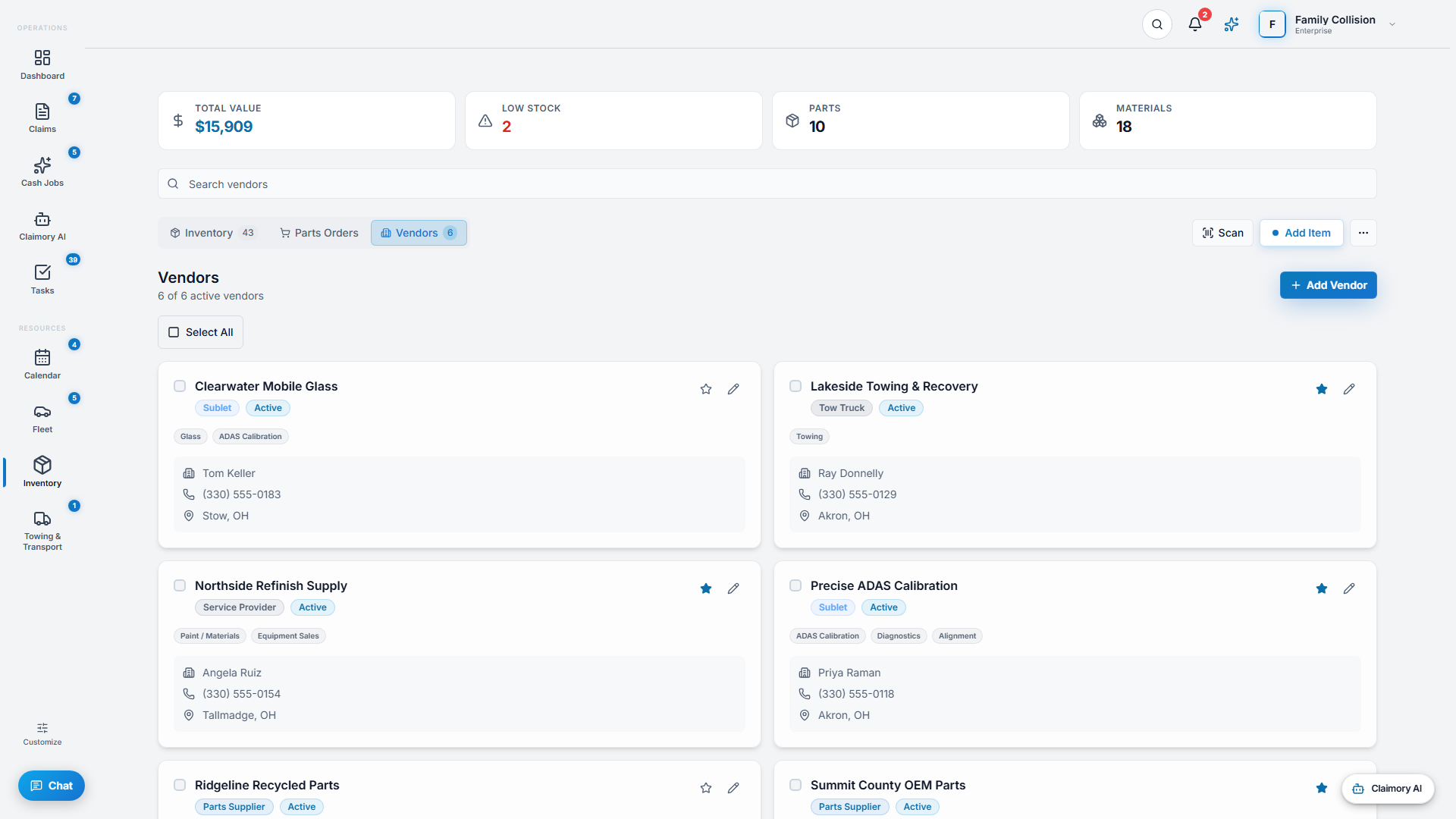


Common questions
Related tutorials
Ready to run your shop on Claimory?
Start a free 14-day trial. No credit card. The full Professional feature set, and an office manager onboarded in about 30 minutes.
No credit card. Works with CCC ONE and Mitchell.