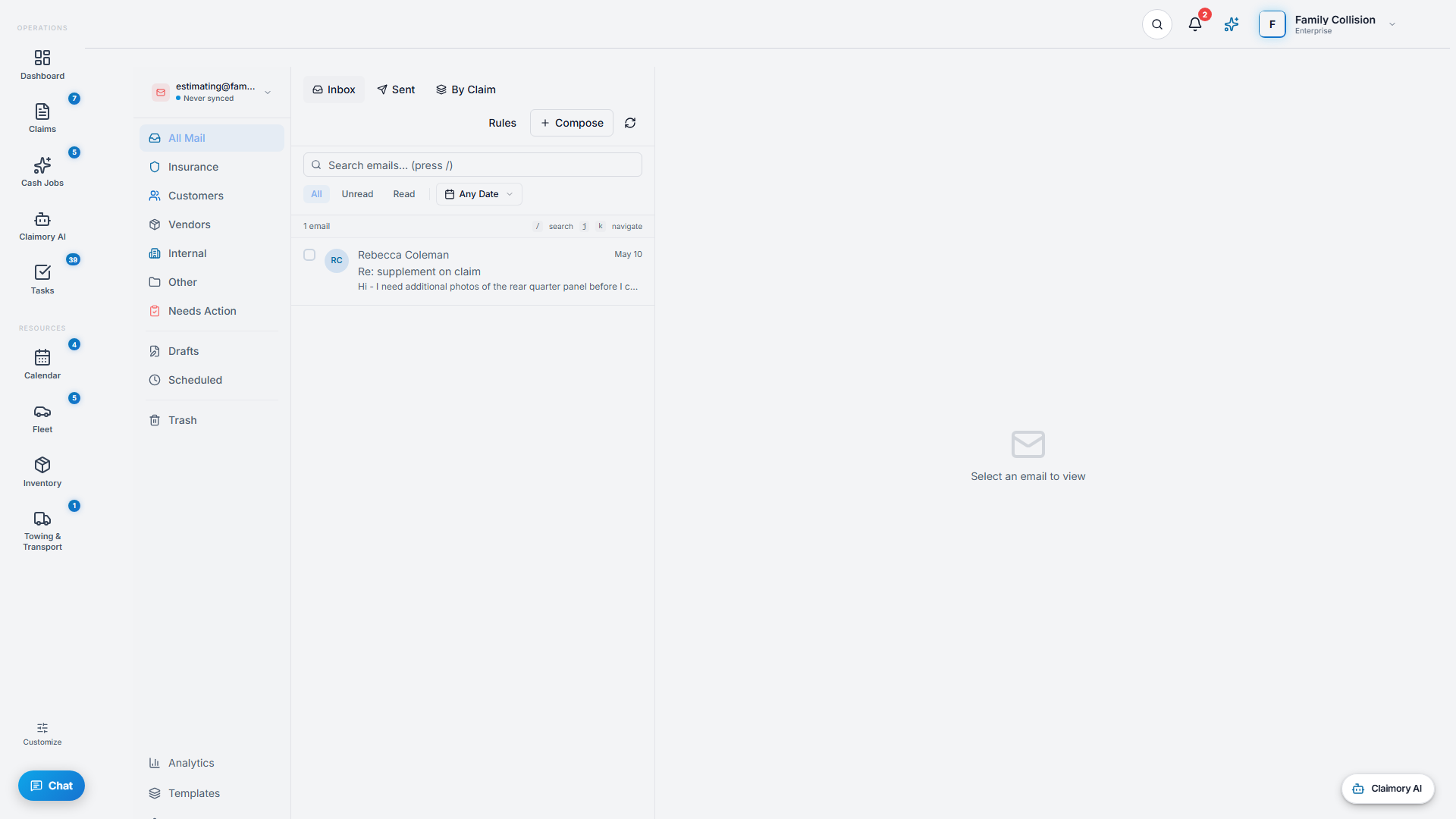
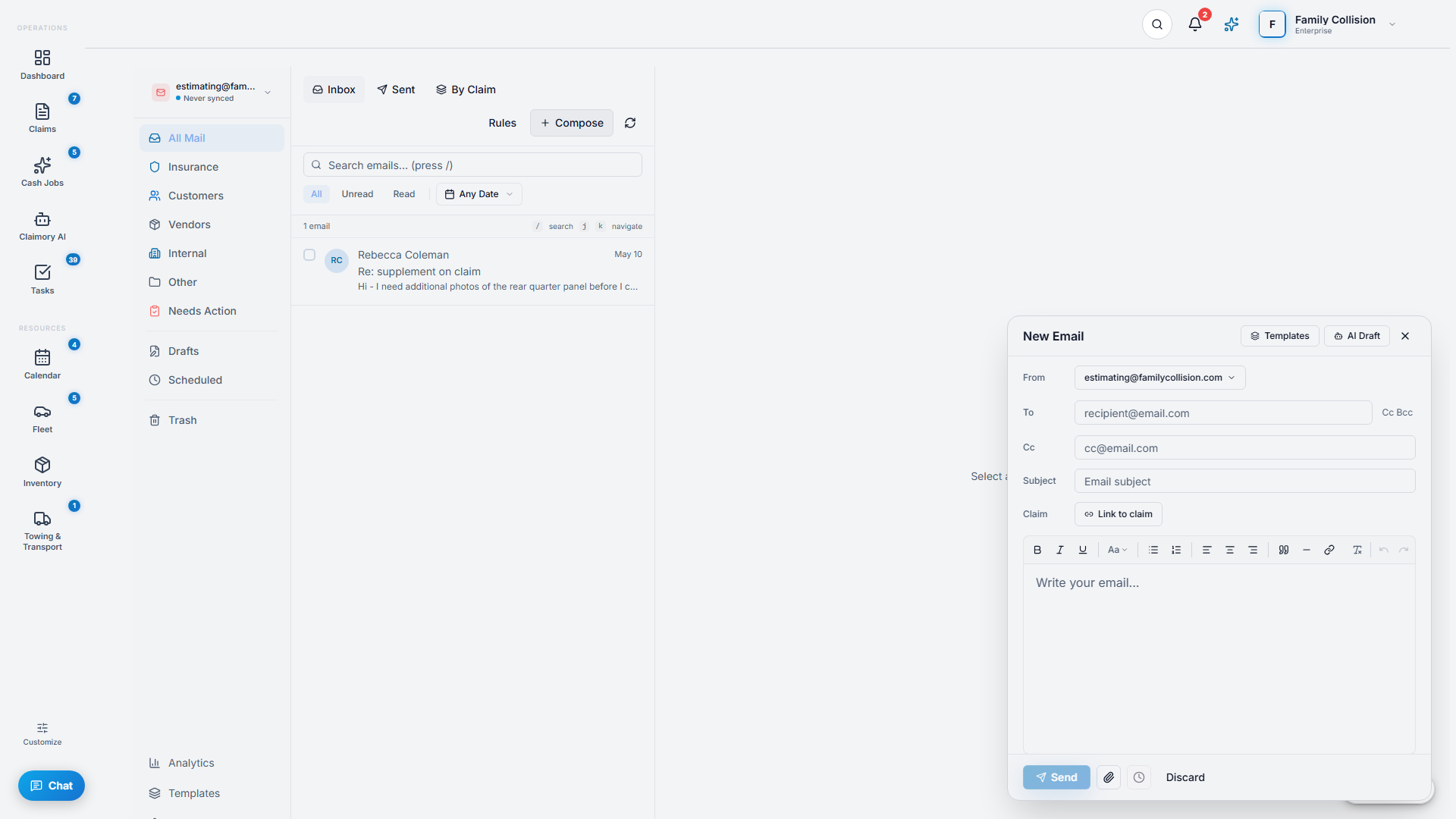
The Email Hub brings your shop inbox into Claimory and ties it to your claims. Adjuster threads, customer emails, and vendor messages all live where the work is.
app.claimory.io/emails
Step 1
1
Connect your email
Open the Email Hub from the left rail. Connect a Gmail account in Settings, Integrations. You can connect more than one account and view them all in a unified inbox.
app.claimory.io/emails
2
Step 2
2
Use smart folders
Email is sorted into smart folders: Insurance (with per-carrier sub-folders), Customer, Vendor, Internal, and Other, plus Unhandled, Drafts, and Scheduled. You can set per-sender rules so future mail routes itself.
Step 3
3
Link email to a claim
Link any message to its claim. From then on it shows up on that claim's Emails tab, so the whole conversation lives with the car.
Pro tip
Use the By Claim view to see your inbox grouped by claim instead of by date.
Step 4
4
Compose and reply
Compose new mail, reply, reply-all, or forward, with scheduled send and drafts. On Professional and up, AI smart replies suggest a ready-to-send response that you approve before it goes out.