
Workspace Settings
Workspace Settings is the shop-wide configuration: who you are, what you charge, what you connect, and how customers hear from you. Available to managers and admins.
- Step 11
Shop Info
Set your shop name, main phone, email, address, and website. These flow into invoices, the customer portal, and your email signature, which you can preview live.
app.claimory.io/settings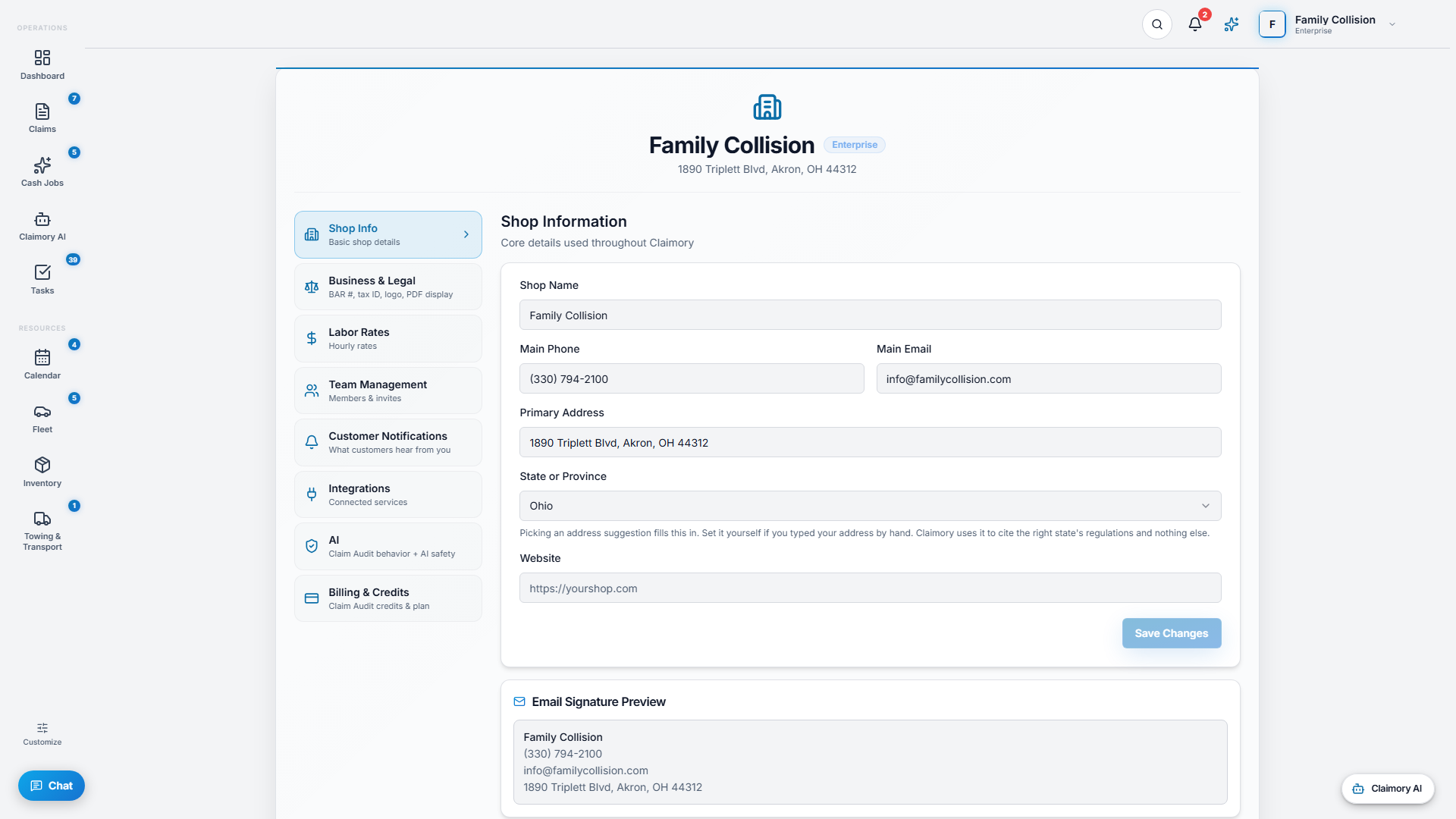
- Step 22
Labor Rates and tax
Set your default hourly rates (mechanical, body, paint, electrical, frame, glass, structural, and storage) and your sales tax rate. These feed every estimate and cash job.
app.claimory.io/settings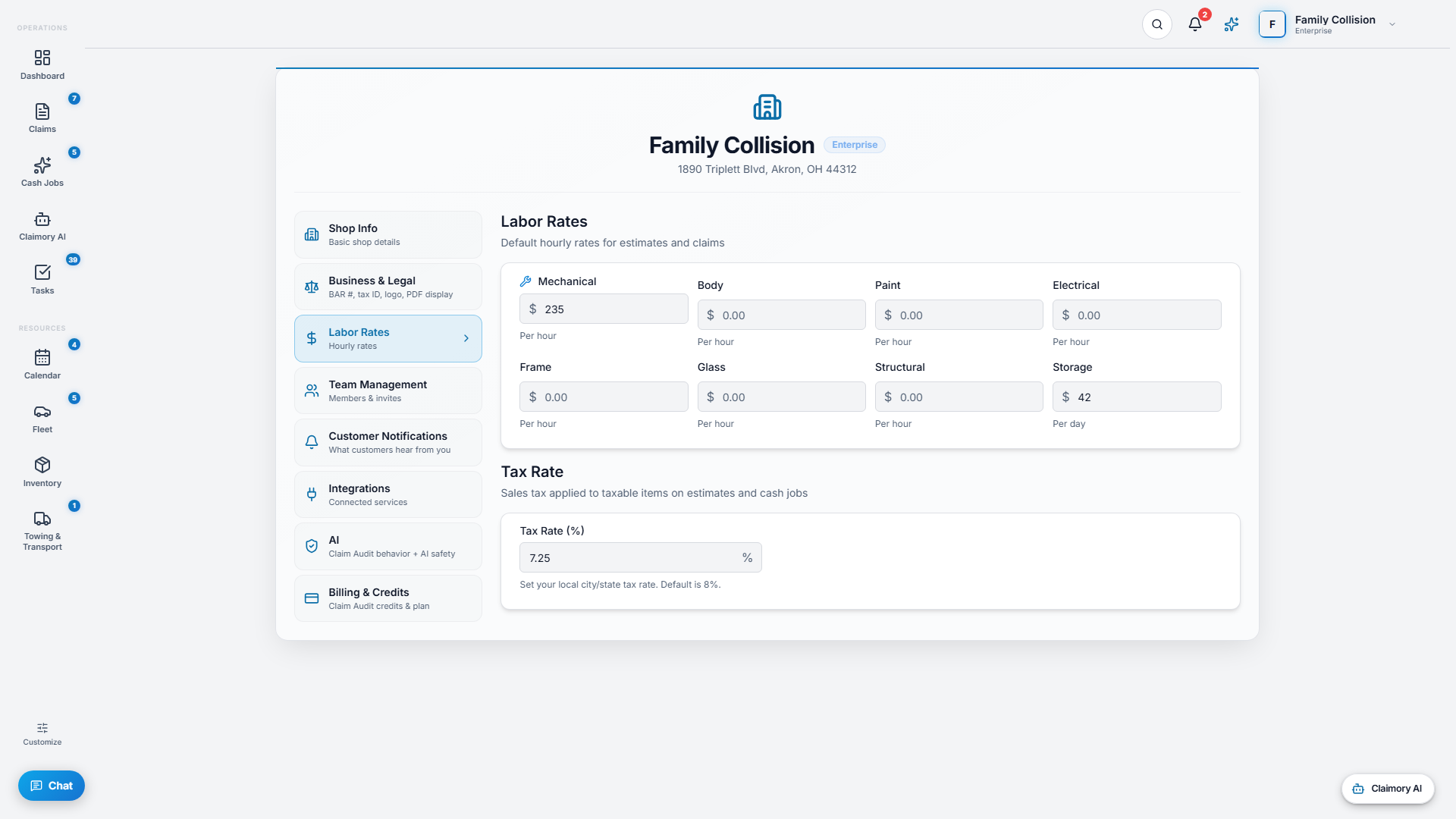
- Step 33
Integrations
Connect Gmail for the Email Hub, and set up Get paid through Claimory (Stripe Connect, Professional and up) so customers can pay deductibles and invoices from the portal with no Claimory platform fee.
app.claimory.io/settings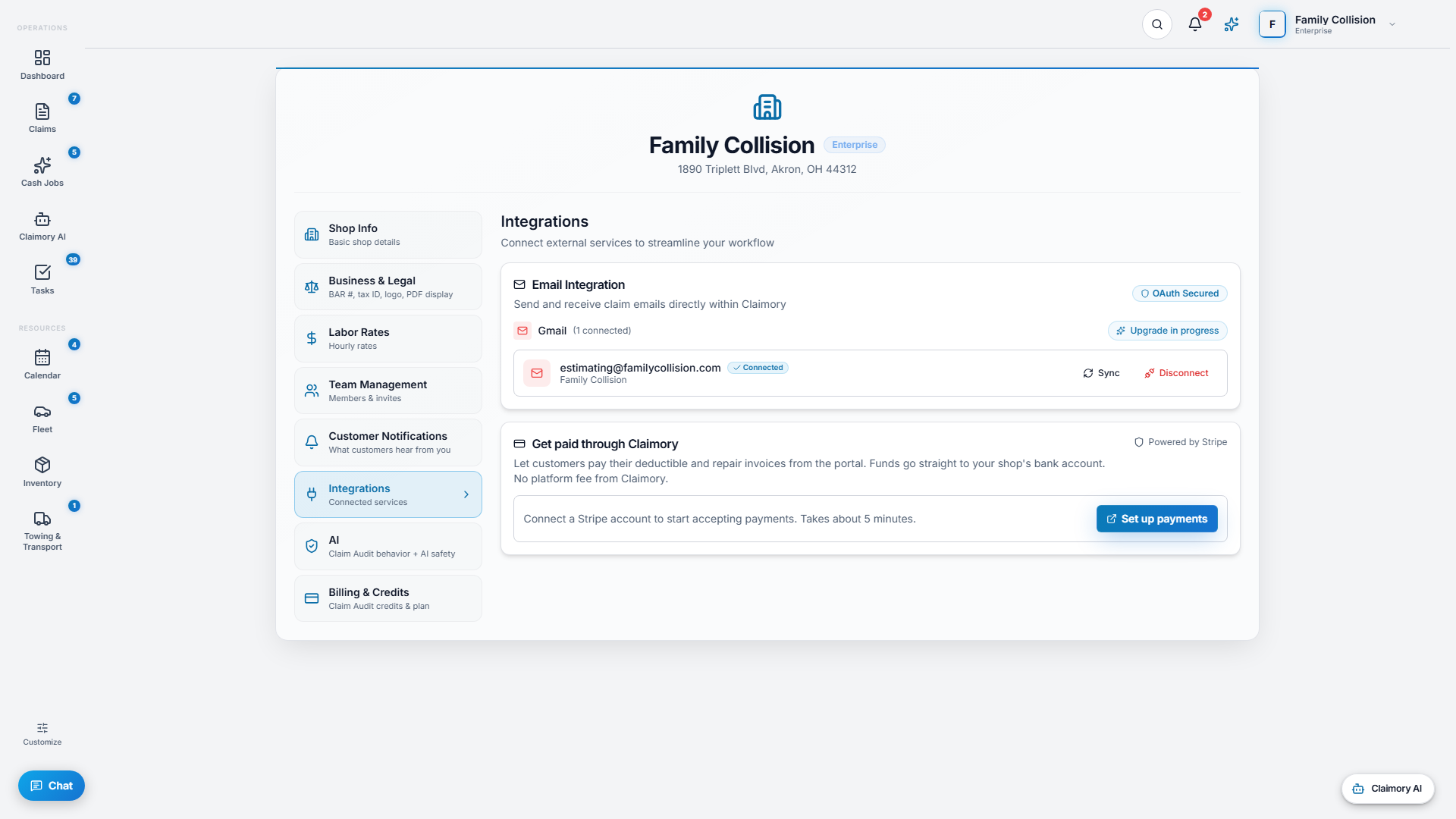
- Step 44
Customer notifications
Control the automatic messages customers receive: a master switch plus email updates and in-app portal notifications. They are on by default, and the toggles only suppress.
app.claimory.io/settings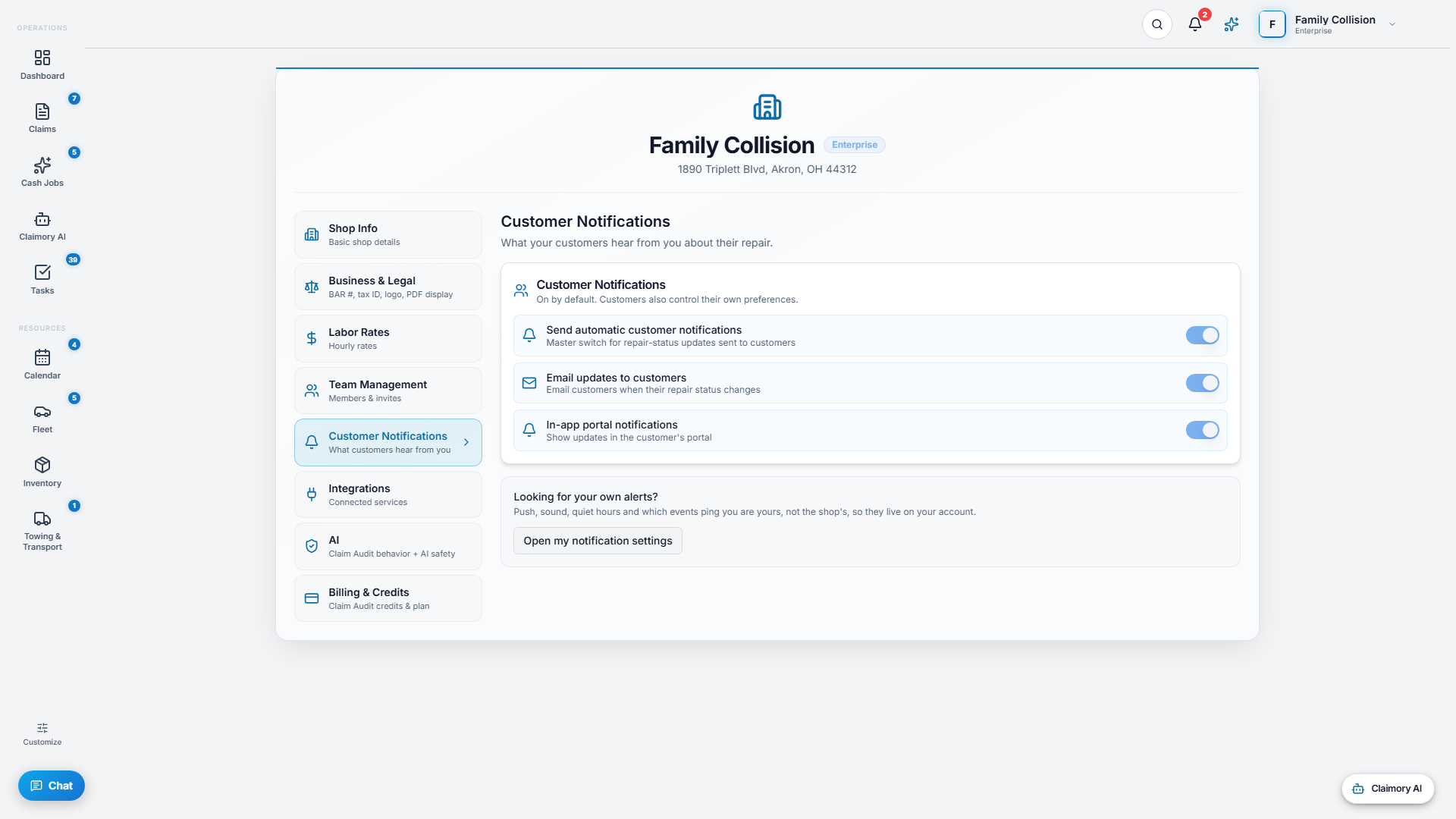


Common questions
Related tutorials
Ready to run your shop on Claimory?
Start a free 14-day trial. No credit card. The full Professional feature set, and an office manager onboarded in about 30 minutes.
No credit card. Works with CCC ONE and Mitchell.